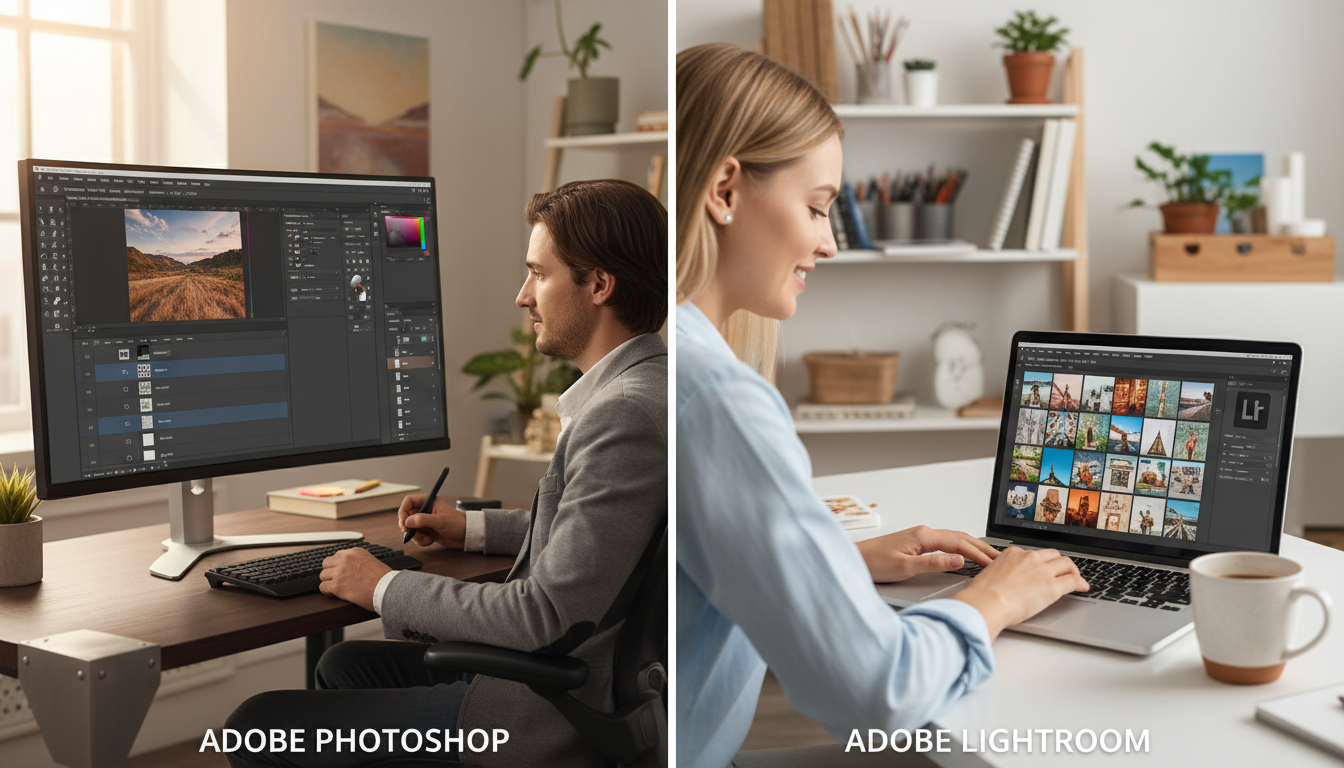

For photographers, choosing the right photo editing software can be a daunting task. Two industry giants, Photoshop and Lightroom, have been at the forefront of this debate. While both are part of the Adobe Creative Cloud suite, they serve different purposes and cater to different needs.
Photoshop is renowned for its powerful editing capabilities, offering a wide range of tools for manipulating images. On the other hand, Lightroom excels in organizing and adjusting photos, providing a streamlined workflow for photographers. For a detailed comparison, check out this in-depth analysis.
Key Takeaways
- Understand the primary functions of Photoshop and Lightroom.
- Learn about the key differences between the two software options.
- Discover which software is best suited for your photo editing needs.
- Explore the unique features of each program.
- Find out how to choose the right tool for your photography workflow.
The Evolution of Adobe’s Photo Editing Software
The evolution of Adobe’s photo editing software is a story of innovation, from the early days of Photoshop to the modern workflow solutions offered by Lightroom. Over the years, Adobe has continuously adapted to the changing landscape of photography, incorporating new technologies and methodologies to enhance the editing experience.
As the demand for high-quality image editing grew, so did the capabilities of Adobe’s tools. The introduction of new features and technologies has transformed the way photographers and graphic designers work.
Photoshop’s Journey from 1990 to Today
Photoshop, first released in 1990, revolutionized the world of image editing. Initially, it was a simple raster graphics editor, but it quickly evolved into a powerful tool with advanced features like layers and filters. Today, Photoshop is the industry standard for photo editing and graphic design, offering a vast array of tools for manipulating and enhancing images.
“Photoshop has become an indispensable tool for photographers and graphic designers alike, offering unparalleled flexibility and precision in image editing.”
How Lightroom Changed the Photography Workflow
Lightroom, introduced in 2007, marked a significant shift in how photographers manage and edit their photos. It introduced a non-destructive editing workflow and a robust catalog system, making it easier for photographers to organize and edit large collections of images. Lightroom’s Develop module offers powerful editing tools that integrate seamlessly with its organizational features, streamlining the photography workflow.
| Feature | Photoshop | Lightroom |
|---|---|---|
| Primary Focus | Pixel-based editing | Non-destructive catalog management |
| Editing Approach | Layer-based | Global adjustments with local tweaks |
Understanding the core differences between Photoshop and Lightroom is crucial for photographers to choose the right tool for their editing needs. While both are powerful photo editing software options from Adobe, they serve different purposes in the editing workflow.
Photoshop: Pixel-Based Editing and Layers
Photoshop is renowned for its pixel-based editing capabilities, allowing for intricate adjustments at the individual pixel level. One of its most powerful features is the use of layers, which enable editors to work on different parts of an image independently. This layering system, combined with a vast array of tools and filters, makes Photoshop ideal for complex editing tasks, such as retouching and image manipulation. For a deeper dive into the differences and capabilities, you can visit Digital Photography School for more insights.
Lightroom: Non-Destructive Catalog System
In contrast, Lightroom operates on a non-destructive catalog system, where edits are made to a virtual copy of the image, preserving the original file. This approach is highly efficient for managing and editing large collections of photos. Lightroom’s strength lies in its ability to organize, filter, and apply consistent edits across multiple images, making it an indispensable tool for photographers who need to process a high volume of images. Its Develop module offers powerful adjustment tools that complement Photoshop’s capabilities, providing a streamlined workflow when used together.
User Interface Comparison
Photoshop and Lightroom, two of the most popular photo editing software, have distinct user interfaces that cater to different needs. While both are designed to facilitate efficient photo editing, their approaches to user interface design reflect their different primary functions.
Navigating Photoshop’s Workspace
Photoshop’s workspace is characterized by a complex array of tools and panels. The software is designed for advanced image manipulation, offering a wide range of tools that can be overwhelming for beginners. However, experienced users can customize the workspace to suit their workflow, making it a powerful environment for detailed editing.
Understanding Lightroom’s Module System
Lightroom, on the other hand, uses a module-based system to organize its features. This approach allows users to navigate through different stages of the photo editing process, from library management to develop adjustments, in a more structured manner. Each module is designed to serve a specific purpose, making it easier for users to focus on one task at a time.
| Feature | Photoshop | Lightroom |
|---|---|---|
| Primary Function | Advanced Image Manipulation | Photo Management and Editing |
| Interface Complexity | High | Moderate |
| Customization | High | Moderate |
Effective photo management is crucial for photographers, and the choice between Photoshop and Lightroom can significantly impact workflow. Organizing a large collection of images can be daunting, but both Adobe tools offer distinct approaches to this challenge.
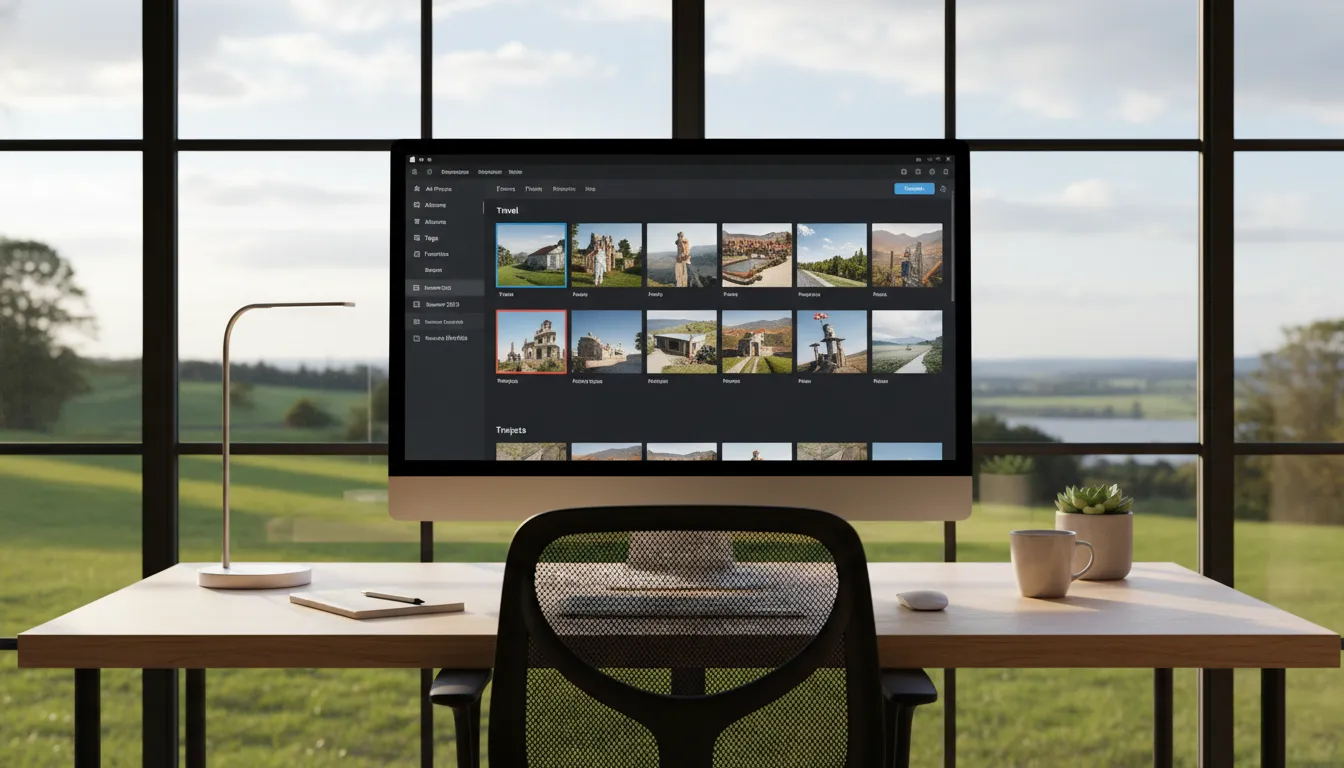
Lightroom’s Powerful Library Module
Lightroom’s Library module is designed to help photographers manage their image collections efficiently. It provides a robust system for cataloging, searching, and organizing photos.
Keywording and Metadata Management
One of the key features of Lightroom’s Library module is its ability to handle keywording and metadata management. Photographers can add relevant keywords, captions, and other metadata to their images, making it easier to search and filter their collections. This feature is particularly useful for professionals who need to manage large portfolios.
Collections and Smart Collections
Lightroom also offers a flexible collection system, allowing users to create Smart Collections based on specific criteria such as date, rating, or keyword.
“Smart Collections automatically update as you import new photos or make changes to existing ones, ensuring that your collections are always current.”
This dynamic approach to organization saves time and reduces the manual effort required to keep image libraries up-to-date.
Photoshop’s Limited Organization Features
While Photoshop is renowned for its editing capabilities, its organizational features are more limited compared to Lightroom. Photoshop relies on external tools or Adobe Bridge for basic file browsing and organization. Although it provides some metadata handling, it lacks the comprehensive cataloging and management features found in Lightroom.
For photographers who need advanced organizational tools, Lightroom is generally the better choice. However, for those primarily focused on editing and manipulation, Photoshop’s capabilities, when used in conjunction with Lightroom or other organizational tools, can be sufficient.
Basic Photo Adjustment Tools
When it comes to photo editing, understanding the basic adjustment tools in both Lightroom and Photoshop is crucial. These tools form the foundation of enhancing your photographs, allowing you to correct and improve various aspects of your images.
Lightroom’s Develop Module Essentials
Lightroom’s Develop module is where you’ll find the essential tools for adjusting your photos. It’s designed to provide a comprehensive set of adjustments that can significantly enhance your images.
Exposure, Contrast, and White Balance
Adjusting exposure, contrast, and white balance are fundamental steps in photo editing. Lightroom allows you to tweak these settings with ease, ensuring your photos look their best. For instance, adjusting the white balance can help remove unwanted color casts, while contrast adjustments can add depth to your images.
Tone Curve and HSL Adjustments
The Tone Curve and HSL (Hue, Saturation, Luminance) adjustments offer more advanced control over your images. The Tone Curve allows for precise adjustments to the brightness and contrast across different tonal ranges, while HSL adjustments enable you to target specific colors for enhancement or correction.
Similar Adjustments in Photoshop
While Photoshop is known for its advanced features, it also offers basic photo adjustment tools similar to those found in Lightroom. Understanding these tools can help you decide which software is best for your needs.
Camera Raw Filter
The Camera Raw Filter in Photoshop brings many of Lightroom’s powerful editing tools directly into Photoshop. This filter allows for non-destructive editing of raw files and provides adjustments for exposure, contrast, and more, similar to Lightroom’s Develop module.
Adjustment Layers
Adjustment Layers in Photoshop offer a flexible way to make edits without altering the original image. These layers can be used for a variety of adjustments, including exposure, contrast, and color balance, providing a powerful tool for fine-tuning your photos.
Advanced Editing Capabilities
For photographers looking to take their editing skills to the next level, understanding the advanced capabilities of Photoshop and Lightroom is crucial. Both software programs offer powerful tools, but they cater to different editing needs and workflows.
Photoshop’s Layer-Based Editing
Photoshop’s strength lies in its layer-based editing system, allowing for complex manipulations and adjustments. This system enables editors to work on different parts of an image independently, providing a high degree of flexibility and control.
Masks and Selections
Masks and selections are fundamental to Photoshop’s editing process. Masks allow editors to hide or reveal parts of a layer, while selections enable them to isolate specific areas of an image for editing. These tools are crucial for making precise adjustments without affecting the entire image.
Blending Modes and Opacity
Photoshop’s blending modes and opacity controls offer additional flexibility in layer-based editing. By changing how layers interact with each other, editors can achieve a wide range of effects, from subtle texture overlays to dramatic composite images.
Lightroom’s Preset and Local Adjustment System
Lightroom, on the other hand, focuses on a non-destructive editing workflow centered around presets and local adjustments. This approach is particularly useful for photographers who need to edit large batches of images consistently.
Graduated and Radial Filters
Graduated filters and radial filters in Lightroom allow for nuanced adjustments to exposure, contrast, and color across specific areas of an image. These tools are invaluable for enhancing skies, balancing exposures, and drawing attention to specific parts of a photograph.
Adjustment Brush Techniques
The Adjustment Brush in Lightroom provides a powerful means of making targeted adjustments to an image. By painting adjustments directly onto the photo, editors can achieve precise control over exposure, color, and texture, enhancing the overall impact of the image.
In conclusion, while both Photoshop and Lightroom offer advanced editing capabilities, they serve different purposes within a photographer’s workflow. Understanding these differences is key to choosing the right tool for the job.
Retouching and Manipulation Tools
Retouching and manipulation are key aspects of photo editing, with both Photoshop and Lightroom offering distinct capabilities. The level of detail and control required can often dictate which software is more suitable for the task.
Photoshop’s Professional Retouching Capabilities
Photoshop is renowned for its powerful retouching tools, making it a favorite among professionals. Healing and Clone tools allow for precise adjustments, enabling the removal of unwanted elements from images.
Healing and Clone Tools
The Healing Brush and Clone Stamp tools in Photoshop are invaluable for retouching. They allow users to seamlessly blend or replicate parts of an image, making it easy to correct flaws or remove distractions.
Content-Aware Features
Photoshop’s Content-Aware Fill and Move tools further enhance its retouching capabilities, automatically filling selected areas with content that matches the surrounding texture and tone.
Lightroom’s Basic Retouching Tools
While not as comprehensive as Photoshop, Lightroom offers basic yet effective retouching tools. The Spot Removal tool is particularly useful for removing blemishes or unwanted objects.
Spot Removal Tool
Lightroom’s Spot Removal tool allows for quick removal of spots or blemishes, offering both Clone and Heal modes to suit different needs.
Healing Brush Limitations
Although Lightroom’s retouching capabilities are more limited compared to Photoshop, it still provides a straightforward and efficient way to make basic adjustments.
Photoshop vs Lightroom: Speed and Performance
In the world of photo editing, the speed and performance of software like Photoshop and Lightroom can make or break productivity. Both Adobe applications are designed to handle demanding editing tasks, but their architectures and approaches differ significantly, impacting their efficiency in various scenarios.
Processing Large Batches of Photos
When it comes to processing large batches of photos, Lightroom has a distinct advantage. Its non-destructive editing model and database-driven catalog system allow for quick imports, filtering, and batch processing. Lightroom’s Develop module is optimized for applying adjustments to multiple images simultaneously, making it an ideal choice for photographers who need to edit large collections efficiently.
In contrast, while Photoshop can handle batch processing through actions, it’s not its primary function. The software’s strength lies in detailed, image-by-image editing, which can become time-consuming when dealing with large batches.
Handling High-Resolution Files
Handling high-resolution files is another area where the two applications differ. Photoshop is generally more adept at handling high-resolution files due to its powerful editing capabilities and support for large image sizes. However, this comes at the cost of higher RAM and CPU requirements.
Lightroom, while capable of handling high-resolution files, may experience slowdowns with extremely large images, especially on lower-end hardware. Nonetheless, its performance remains robust for most photography applications.
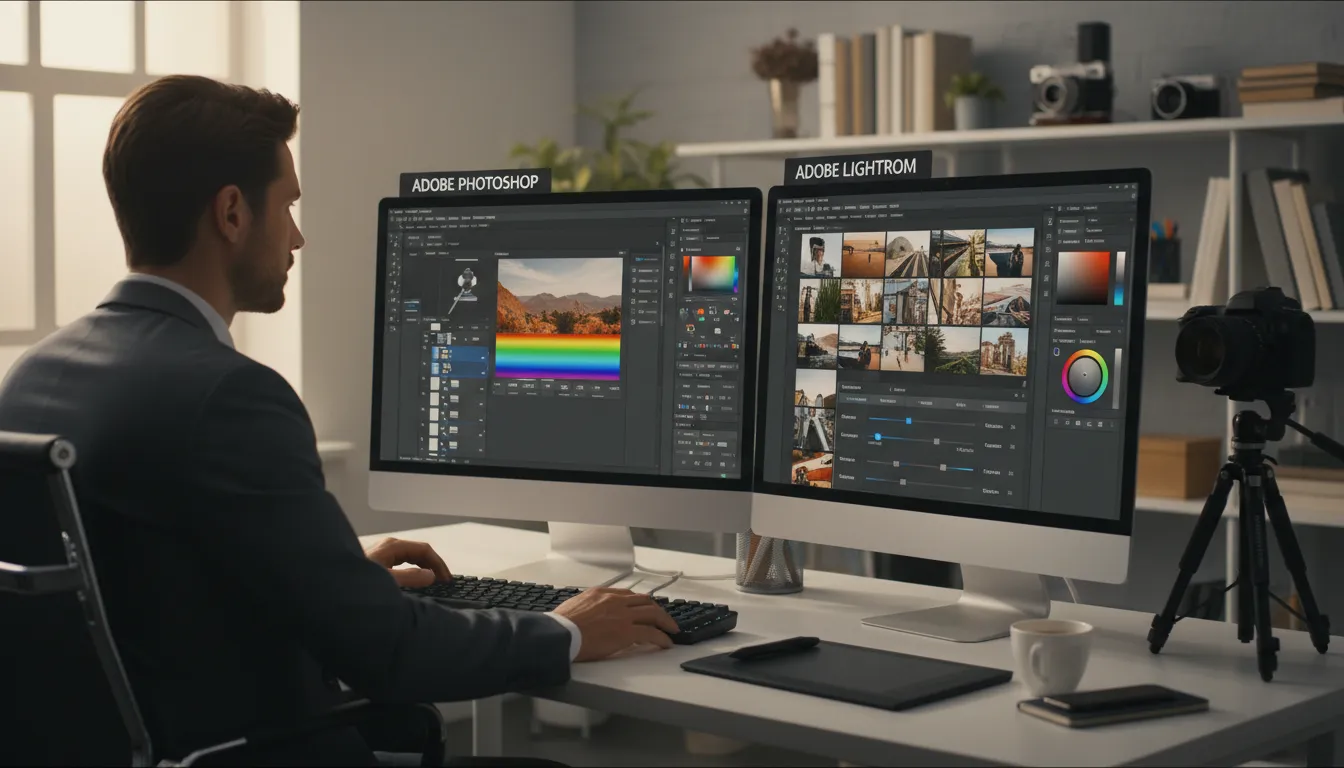 Ultimately, the choice between Photoshop and Lightroom for speed and performance depends on your specific workflow needs. For batch processing and catalog management, Lightroom’s speed is hard to beat. For detailed, high-resolution editing, Photoshop remains the industry standard, despite potentially longer processing times for very large files.
Learning Curve and Accessibility
Mastering photo editing software requires time and dedication, especially for complex tools like Photoshop. The learning curve and accessibility of these programs are crucial factors that can significantly impact a photographer’s workflow and overall editing experience.
Getting Started with Lightroom
Lightroom is generally considered more accessible to photographers of all skill levels. Its intuitive interface and module-based system make it easier for new users to navigate and find the tools they need. Key features include:
- A straightforward library module for organizing photos
- A develop module with essential adjustment tools
- A user-friendly interface that simplifies the editing process
These features make Lightroom an excellent choice for those new to photo editing or looking for a more streamlined workflow.
Mastering Photoshop’s Complexity
Photoshop, on the other hand, offers advanced features that come with a steeper learning curve. Its layer-based editing and extensive toolset can be overwhelming for beginners. However, for those willing to invest the time, Photoshop offers unparalleled editing capabilities. To get the most out of Photoshop, photographers should:
- Familiarize themselves with the layer system
- Practice using advanced tools like content-aware fill
- Explore the various menus and panels to understand the full range of editing options
Pricing and Subscription Options
When it comes to photo editing software, the cost can be a significant factor in choosing the right tool. Adobe offers various pricing plans for Photoshop and Lightroom, catering to different user needs.
Adobe’s Photography Plan
Adobe’s Photography Plan is a cost-effective option that includes both Lightroom and Photoshop. This plan is ideal for photographers who need both tools for their workflow. It offers 1TB of cloud storage and access to the latest versions of both applications. The plan is priced at $19.99/month, making it an attractive option for those looking for a comprehensive photo editing solution.
Individual Software Costs and Value Assessment
For users who only need one of the applications, Adobe offers individual plans. Photoshop is available for $20.99/month, while Lightroom is priced at $9.99/month. Assessing the value of each software depends on the user’s specific needs. For instance, professional photographers may find Photoshop’s advanced features worth the investment, while hobbyists might prefer Lightroom’s more straightforward editing capabilities.
Mobile and Cloud Integration
As photographers increasingly work across multiple devices, the importance of mobile and cloud integration in photo editing software cannot be overstated. Both Lightroom and Photoshop have made significant strides in this area, offering users the flexibility to work on their photos across different platforms.
Lightroom Mobile Capabilities
Lightroom’s mobile app offers a comprehensive set of editing tools that allow photographers to work on their images on the go. The app is available on both iOS and Android devices, ensuring that users can access their photos and editing tools regardless of their device.
iOS and Android Functionality
The functionality across both iOS and Android platforms is robust, with features like local adjustment tools and presets that mirror the desktop experience. According to Fstoppers, Lightroom’s mobile version is “remarkably full-featured.”
Cloud Syncing Features
One of Lightroom’s standout features is its cloud syncing capability, which allows users to seamlessly move between the mobile app and the desktop version without losing their edits or having to manually transfer files.
Photoshop on iPad and Cloud Features
Photoshop has also made a significant push into the mobile space with its iPad app, offering many of the same powerful editing tools found in the desktop version. While it’s not as fully featured as the desktop version, it provides a robust editing experience on a larger mobile screen. Photoshop’s cloud features allow for syncing files across devices, though the experience is slightly more complex than Lightroom’s due to the more intricate nature of Photoshop’s file structure.
Workflow Considerations for Different Photography Genres
Understanding the specific needs of your photography genre is crucial for an efficient workflow. Different genres have unique requirements that can significantly impact how you edit and organize your photos.
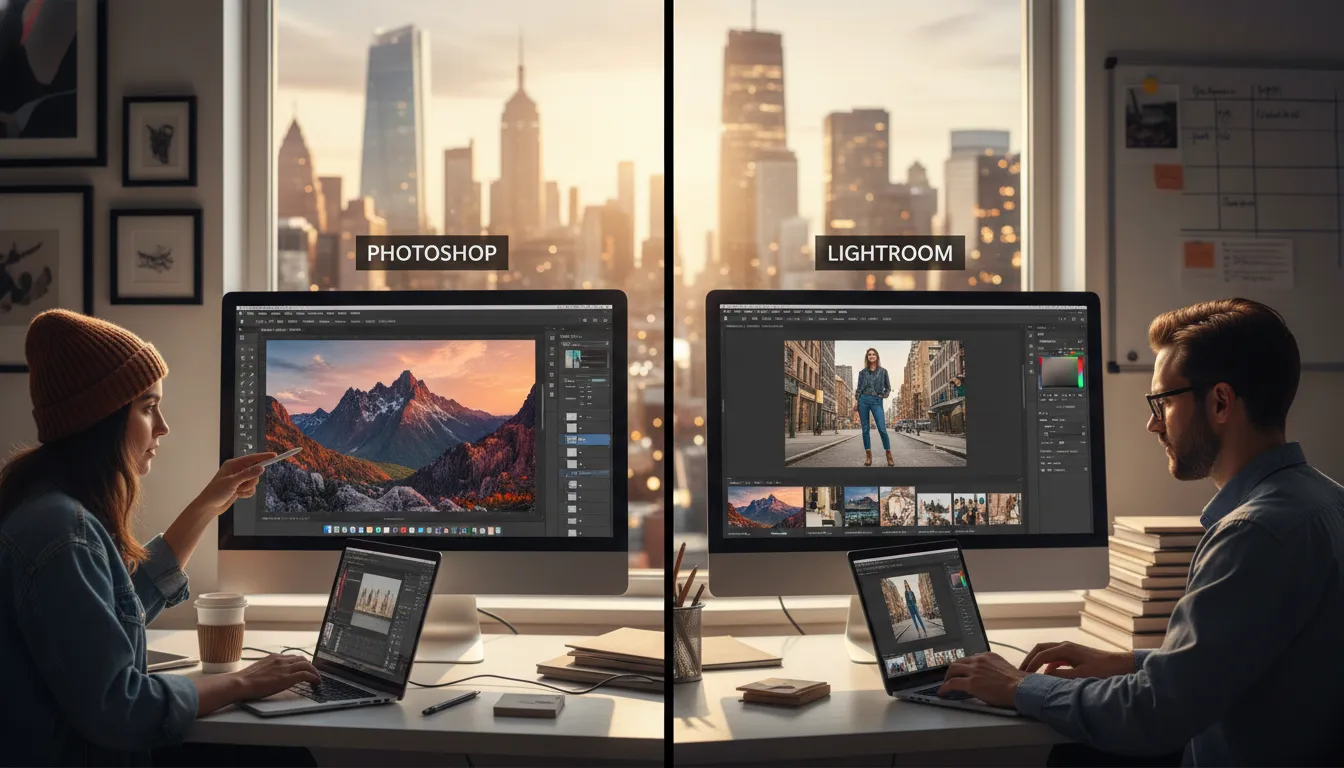
Portrait Photography Workflows
Portrait photographers often require advanced retouching capabilities, making Photoshop a valuable tool. They need to enhance facial features, remove blemishes, and sometimes change the background. While Lightroom can handle basic adjustments, Photoshop’s layer-based editing is indispensable for detailed retouching.
Landscape Photography Approaches
Landscape photographers typically work with high-resolution images and need to adjust colors, contrast, and exposure. Lightroom is particularly useful for landscape photographers due to its ability to handle large batches of photos and its powerful Develop module for making global adjustments. Its non-destructive editing ensures that the original image remains intact.
Commercial Photography Requirements
Commercial photographers often juggle multiple projects simultaneously and require both editing precision and organizational efficiency. They benefit from Lightroom’s cataloging system, which helps in managing large collections. For specific images that need advanced manipulation, such as product photography, Photoshop is essential. The ability to switch between Lightroom and Photoshop seamlessly is a significant advantage for commercial photographers.
In conclusion, the choice between Photoshop and Lightroom largely depends on the specific needs of your photography genre. By understanding these needs and leveraging the strengths of each software, photographers can create a more efficient and effective workflow.
Professional vs Amateur Needs
Professional photographers have different requirements than amateurs, and this distinction is key to choosing the right photo editing tool. The complexity and frequency of edits, along with the need for advanced manipulation, vary significantly between these two groups.
For professionals, the choice between Photoshop and Lightroom depends on the specific demands of their projects. Let’s examine when each software is preferred.
When Professionals Choose Photoshop
Photoshop is the go-to choice for professionals who require advanced editing capabilities, such as detailed retouching, complex compositing, and manipulation of images. For instance, professional photographers often need to remove blemishes, adjust facial features, or merge multiple images into a single cohesive picture. Photoshop’s layer-based editing system and extensive toolkit make it ideal for these tasks.
When Lightroom is Sufficient for Professionals
On the other hand, Lightroom is often sufficient for professionals whose work involves a lot of batch processing, color grading, and basic adjustments. It’s particularly useful for photographers who shoot in RAW and need to apply consistent edits across multiple images. Lightroom’s non-destructive editing and powerful cataloging system make it an efficient choice for managing large collections of photos.
The following table summarizes the key differences in usage between professionals and amateurs:
| Feature | Professional Photographers | Amateur Photographers |
|---|---|---|
| Advanced Editing | Require detailed retouching and manipulation (Photoshop) | Basic adjustments and filters suffice (Lightroom) |
| Batch Processing | Need efficient batch editing (Lightroom) | Less frequent batch editing |
Using Photoshop and Lightroom Together
For photographers and editors, leveraging the strengths of both Photoshop and Lightroom can significantly enhance their workflow. By understanding how to integrate these two powerful tools, users can create a more efficient and effective photo editing process.
Optimal Workflow Integration
The key to using Photoshop and Lightroom together lies in understanding the strengths of each application. Lightroom excels at managing and making initial adjustments to photos, while Photoshop is renowned for its advanced editing capabilities.
Starting in Lightroom
Begin your workflow in Lightroom, where you can import, organize, and make initial adjustments to your photos. Lightroom’s non-destructive editing and powerful cataloging system make it ideal for managing large collections of images.
Finishing in Photoshop
For images that require more advanced editing, such as complex retouching or manipulation, transfer the photos to Photoshop. Here, you can leverage the full power of layers, masks, and other advanced tools to achieve the desired result.
Round-Trip Editing Process
The round-trip editing process between Lightroom and Photoshop is seamless. After editing a photo in Photoshop, it can be automatically updated in Lightroom, ensuring that all edits are reflected in your catalog. This integration allows for a flexible and powerful editing workflow.
| Task | Lightroom | Photoshop |
|---|---|---|
| Photo Management | Excellent | Limited |
| Basic Adjustments | Very Good | Very Good |
| Advanced Editing | Limited | Excellent |
Alternatives to Adobe’s Offerings
While Adobe’s Photoshop and Lightroom dominate the photo editing landscape, several alternatives offer compelling features for photographers. As the demand for advanced photo editing tools continues to grow, other software options have emerged to challenge Adobe’s dominance.
Two notable alternatives are Capture One and Affinity Photo, which have gained popularity among professionals and hobbyists alike. Let’s examine how these alternatives compare to Adobe’s offerings.
Capture One vs Lightroom
Capture One is often praised for its superior tethered shooting capabilities and advanced raw image processing. Unlike Lightroom, it offers more precise control over image editing, particularly in terms of color grading and detail enhancement. However, Lightroom’s intuitive interface and seamless integration with other Adobe tools make it a favorite among many photographers.
Key differences:
- Capture One offers more advanced color grading tools.
- Lightroom excels in catalog management and batch processing.
Affinity Photo vs Photoshop
Affinity Photo is a professional-grade raster graphics editor that rivals Photoshop in many aspects. It offers a comprehensive set of tools, including support for PSD files, advanced retouching capabilities, and a user-friendly interface. While Photoshop remains the industry standard, Affinity Photo’s one-time purchase model and compatibility with Adobe file formats make it an attractive alternative.
“Affinity Photo is a game-changer for photographers who want professional-grade editing tools without the subscription model.”
Key advantages of Affinity Photo:
- One-time purchase model.
- Compatibility with Adobe PSD files.
- Advanced retouching and editing tools.
Conclusion: Choosing the Right Tool for Your Photography
When it comes to photo editing, selecting the best editing software can be a daunting task. This comparison between Photoshop and Lightroom has highlighted their unique strengths and weaknesses, providing a comprehensive photo editing software comparison.
Photoshop excels in advanced editing capabilities, offering a wide range of tools for retouching and manipulation. On the other hand, Lightroom provides a streamlined workflow for organizing and adjusting photos, making it an ideal choice for photographers who need to process large batches of images.
Ultimately, the choice between Photoshop and Lightroom depends on your specific photography needs. If you’re looking for a powerful tool for detailed editing, Photoshop is the way to go. However, if you need a software that can handle photo organization and basic adjustments with ease, Lightroom is the best editing software for you.
By understanding the core differences between these two Adobe applications, you can make an informed decision and optimize your photography workflow. Whether you’re a professional or an amateur, choosing the right tool will help you achieve your creative vision.
FAQ
What is the main difference between Photoshop and Lightroom?
Photoshop is a powerful image editing software that offers advanced tools for manipulating and editing images, while Lightroom is a photo management and editing software that focuses on non-destructive editing and cataloging.### Can I use Photoshop and Lightroom together?
Yes, many professionals use both Photoshop and Lightroom together in their workflow, starting with Lightroom for initial editing and organization, and then using Photoshop for more advanced editing and manipulation.### Is Lightroom a good alternative to Photoshop for basic editing tasks?
Yes, Lightroom is a great option for basic editing tasks such as exposure and contrast adjustments, and it offers a more streamlined and user-friendly interface compared to Photoshop.### What are the system requirements for running Photoshop and Lightroom?
Both Photoshop and Lightroom require a relatively powerful computer with a multi-core processor, plenty of RAM, and a dedicated graphics card. The exact system requirements can be found on Adobe’s website.### Can I edit RAW files in both Photoshop and Lightroom?
Yes, both Photoshop and Lightroom support editing RAW files, although Lightroom is generally more efficient at handling large batches of RAW files.### Are there any alternatives to Adobe’s photo editing software?
Yes, there are alternatives such as Capture One and Affinity Photo that offer similar functionality to Lightroom and Photoshop, respectively.### How do I choose between Photoshop and Lightroom for my photography needs?
Consider your specific needs, such as the type of photography you do, the level of editing you require, and your budget. If you need advanced editing capabilities, Photoshop may be the better choice. If you need a more streamlined workflow and photo management, Lightroom may be the way to go.### What is the best photo editing software for beginners?
Lightroom is often recommended for beginners due to its user-friendly interface and non-destructive editing capabilities, making it an ideal starting point for those new to photo editing.### Can I use Photoshop and Lightroom on mobile devices?
Yes, Adobe offers mobile versions of both Photoshop and Lightroom, allowing you to edit and manage your photos on-the-go.